To write C++ applications on Linux, you need a compiler and an editor (or an IDE).
Installing a Compiler
On Debian and Linux distributions based on Debian, start by running the following command:
sudo apt install build-essentialOn openSUSE, run the following command as root:
zypper install -t pattern devel_basisAnd on Fedora (versions 33 to 36), the following commands will do the job:
sudo dnf install gcc-c++ cmake make gdb
sudo dnf groupinstall development-toolsOn newer Fedora versions, group install must be used instead:
sudo dnf install gcc-c++ cmake make gdb
sudo dnf group install development-toolsThis installs all the tools required for development. In particular, it installs the GCC compiler (GNU Compiler Collection). You can check whether it is available on your system with the following command:
gcc -vFurther information about the GCC compiler can be found on the GCC project homepage.
Once these packages are installed, you are ready to get started. By default, various editors are already installed on Linux systems that can be used for programming. Let’s begin with an example.
Hello, World!
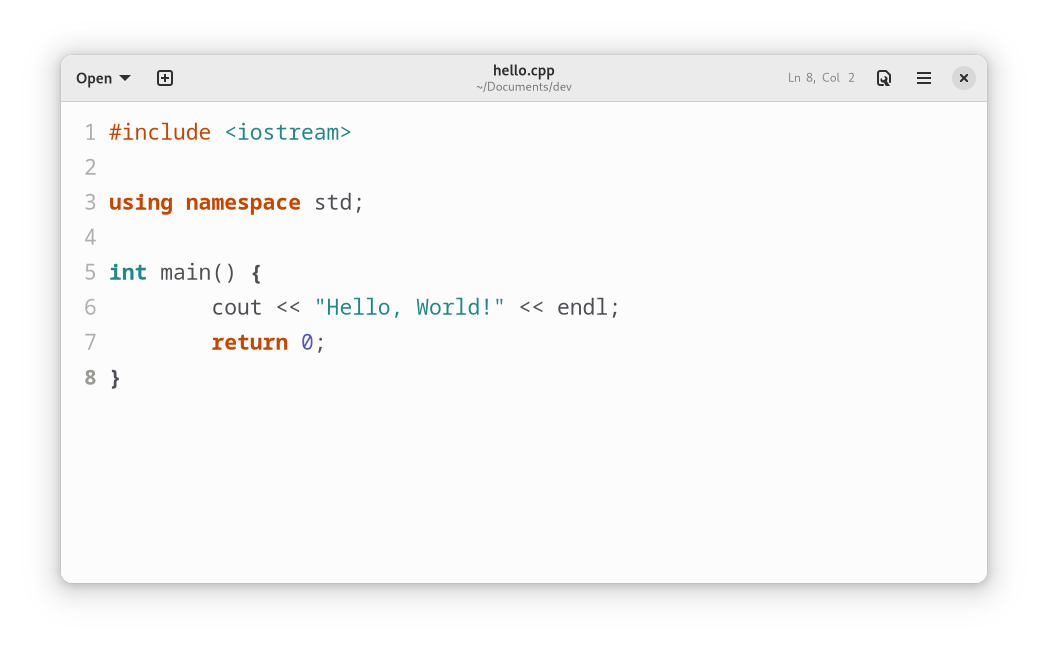
Open an editor of your choice, for example the Text Editor available under GNOME, and enter the following code:
#include <iostream>

using namespace std;

int main() {
    cout << "Hello, World!" << endl;
    return 0;
}Save the file as „hello.cpp“. To compile C++ code, the GCC compiler is invoked using the g++ command. The complete command looks like this:
g++ -o hello hello.cppThe -o option causes an executable file (here: „hello“) to be created. The program can now be executed in the terminal:
./helloAs expected, this outputs Hello, World!.
Additional Editors
Simple programs can be written using the Text Editor, but a professional editor is more comfortable. The selection available on Linux is quite large; here is a small sample:
- emacs
- vim
- Sublime Text
- Visual Studio Code
On Ubuntu Linux, Visual Studio Code, Sublime Text, emacs, and vim can be installed via the package manager „Ubuntu Software“. Alternatively, emacs and vim can also be installed via the terminal:
sudo apt install emacs-gtkor
sudo apt install vimIntegrated Development Environments
If you want something even more professional, you can use an IDE (Integrated Development Environment), for example Eclipse.
Eclipse
This IDE can be installed via „Ubuntu Software“. Search for „Eclipse“ and start the installation by clicking „Install“. Alternatively, on the Eclipse website, in the download section, you can find the Linux installation package under „Eclipse IDE for C/C++ Developers“. There is also an „Eclipse Installer“ that can be used instead. After downloading, extract the archive and switch to the eclipse-installer directory in the terminal. The installation is then started with the following command:
./eclipse-instThe following view appears, in which „Eclipse IDE for C/C++ Developers“ should be selected.

Whichever route you choose, a Java Runtime is definitely required:
sudo apt install default-jreOnce everything is installed, Eclipse can be started from the terminal. Change to the eclipse directory and start the program:
./eclipseFirst, a workspace must be selected. Once that is done, a new C++ project can be created by clicking on „Create a new C/C++ project“.
kDevelop
Users of KDE may prefer to use the kDevelop development environment. It can be installed via the software manager Discover. After starting this IDE, a new project is created by clicking on „New Project“.
A console application can be started via the menu:
> Standard > Terminal > CMake C++The editor opens, displaying a code example (Hello World).
JetBrains CLion
Finally, I would like to mention the cross-platform IDE CLion from JetBrains. Developers who are already familiar with other JetBrains products will quickly feel at home with CLion. For non-commercial use, this IDE is now free. An overview of the available pricing models can be found on this website.
Ubuntu users also have the option of downloading CLion as a Snap package. In the terminal, this is done with the following command:
sudo snap install clion --classic