
Within the Utilities folder, which is a subfolder of the Applications folder, you’ll find a collection of various useful applications. One of these is the Terminal program.
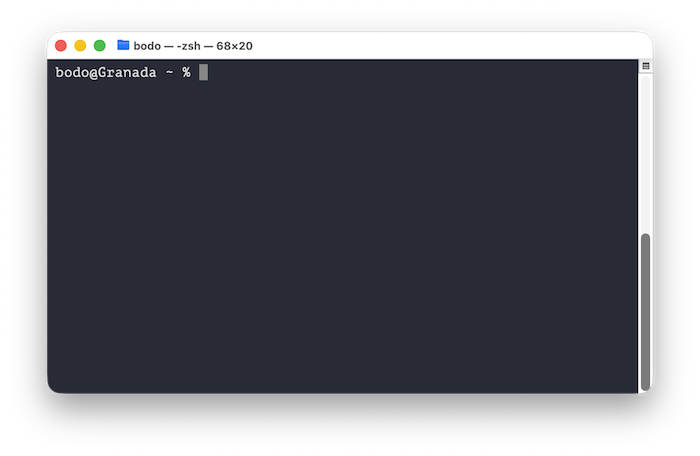
Instead of navigating to the Utilities folder in Finder and then launching the program, you can use Spotlight search (keyboard shortcut: ⌘ + spacebar) and enter the word “Terminal” as the search term. Whichever method you choose, a window with a dark background will open.
What does the Terminal app do?
The Terminal provides direct access to a shell. On a Mac, this is the Zsh shell by default. Through the Terminal, you can enter commands. The Terminal reads these commands and processes them. For example, you can use the Terminal to navigate the file system and manage files and folders (e.g., creating, deleting, or copying files or folders). Therefore, the Terminal app on a Mac is a powerful tool that can be used for numerous tasks.
In this article, we will take a look at basic commands for navigating the file system.
Navigating the File System
When the Terminal is launched, a line appears, known as the prompt, which is waiting for you to enter a command. If you enter a random string that cannot be interpreted, an error message will appear. For example, if you enter nhjv6e, the following happens:
bodo@Granada ~ % nhjv6e
zsh: command not found: nhjv6eSince this is not a valid command, the message “command not found” appears. This is different when you execute pwd:
bodo@Granada ~ % pwd
/Users/bodoThe pwd command (print working directory) allows you to display your current location in the file system. In this example, I receive the output indicating that I am in my user directory (“bodo”), which is a subdirectory of “Users.”
The cd command allows you to change directories. This is how you navigate the file system. To get from my user directory to the “Documents” directory, I use the following command:
% cd DocumentsYou can tell that this was successful because the prompt now shows “Documents” before the % symbol.
bodo@Granada Documents %In Finder, you will see folder names that correspond to the language set in the preferences. On a Mac set to German, for example, you would see “Dokumente” instead of “Documents”. However, in the Terminal, you must always use the English names, regardless of the language defined in your system settings. Therefore, to navigate from your user directory to the “Desktop” directory, you would need to enter:
% cd DesktopFrom the “Desktop” (or “Documents”) directory, you can return to “/Users/bodo” with the following command:
% cd ..After cd and a space, you write two dots (..) to navigate to the parent directory. Using two dots, a slash (/), and two more dots would take me to the parent directory:
% cd ../..If you are in the “Desktop” directory and enter cd ../.., you will end up in the “Users” directory, which can be confirmed by running the pwd command:
% cd ../..
% pwd
/UsersDisplaying Directory Contents
The ls command is very useful for displaying the contents of a directory. When executed in the user directory, the output will be similar to the following:
% ls
Applications    Movies
Desktop         Music
Documents       Pictures
Downloads       Public
LibraryThese are the directories that you also see in Finder — apart from “Library” — only in the language set in the system preferences.
Conclusion
This article has only given you a very brief overview of the numerous commands available to you in the terminal. The commands shown here will allow you to navigate the file system, but there are so many more possibilities. If you are interested in this topic and want to delve deeper, I recommend the book macOS-Shell for Beginners, which you can purchase from Amazon.